 NOTE67
OLLAMA SETUP GUIDE
Run AI models locally on your Mac. This guide will help you set up Ollama to power Note67's AI summarization features.
DOWNLOAD OLLAMA
Visit the official Ollama website to download the macOS app.
Download OllamaAfter downloading:
- Open the downloaded .dmg file
- Drag Ollama to your Applications folder
- Launch Ollama from Applications
DOWNLOAD A MODEL (TERMINAL)
Open Terminal and run the following command to download your first model. We recommend starting with gemma3 for a good balance of speed and quality.
$ ollama pull gemma3Other recommended models:
ollama pull gemma3:1bFastest, ~1GB • Good for quick summaries
ollama pull gemma3:4bBalanced, ~3GB • Recommended for most users
ollama pull gemma3:12bHigher quality, ~8GB • Better understanding
ollama pull llama3.2Alternative model, ~2GB • Meta's latest
DOWNLOAD A MODEL (UI)
Prefer a graphical interface? Ollama has a built-in chat UI where you can browse and download models.
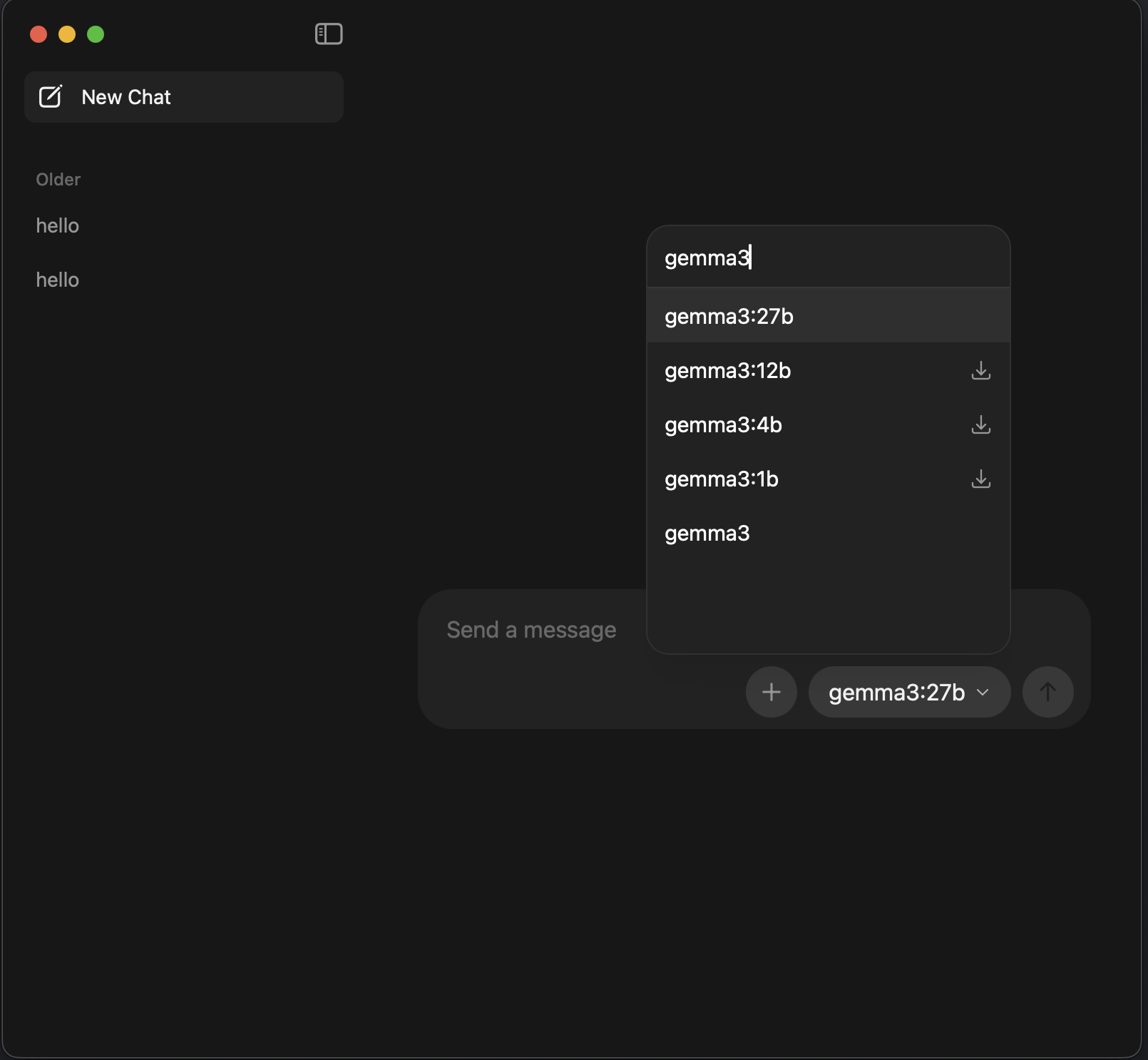
Ollama's built-in UI showing available gemma3 model variants
How to use the UI:
- Click the Ollama icon in your menu bar
- Select "Open Ollama" to launch the chat interface
- Click the model dropdown at the bottom
- Type to search for models (e.g., "gemma3")
- Click the download icon next to a model to install it
- Models with no icon are already installed
VERIFY INSTALLATION
Confirm Ollama is running and your models are installed.
$ ollama listNAME SIZE MODIFIED
gemma3:latest 3.0 GB 2 hours ago
gemma3:1b 815 MB 1 hour agoYou should see a list of your installed models. Ollama runs as a background service, so it will be available whenever Note67 needs it.
CONNECT TO NOTE67
Note67 automatically detects Ollama when it's running. Just make sure Ollama is active in your menu bar before using AI features.
In Note67:
- Open Note67 Settings
- Navigate to the AI section
- Select your preferred Ollama model
- Start transcribing and enjoy AI-powered summaries!
TIPS
MEMORY USAGE
Larger models produce better results but use more RAM. Start with smaller models (1b/4b) and upgrade if needed.
MULTIPLE MODELS
You can install multiple models and switch between them in Note67 depending on your needs.
UPDATES
Run ollama pull [modelname] again to update a model to its latest version.
PRIVACY
All processing happens locally on your Mac. Your transcripts and summaries never leave your device.